Introducing Sage: My Personal AI Assistant That Actually Works

Introduction
I've been on a quest for the perfect personal AI assistant for a while now. Not the kind that lives in a web browser tab that I have to actively go to, but something that meets me where I already am — my messaging apps. Something that feels less like a tool and more like a teammate.
Enter Clawdbot.
In this post, I'll walk you through my complete setup — from the initial installation to configuring multiple messaging channels, setting up skills, and the learnings I picked up along the way. If you've been curious about running your own AI assistant that integrates with Telegram, Discord, WhatsApp, and more, this one's for you.
So, let's get started!
What is Clawdbot?
Clawdbot is a personal AI assistant that you run on your own devices. Think of it as the control plane for your AI-powered workflows. The key differentiator? It connects to the messaging apps you already use — WhatsApp, Telegram, Discord, Slack, Signal, iMessage, and even Microsoft Teams.
The architecture is elegantly simple:
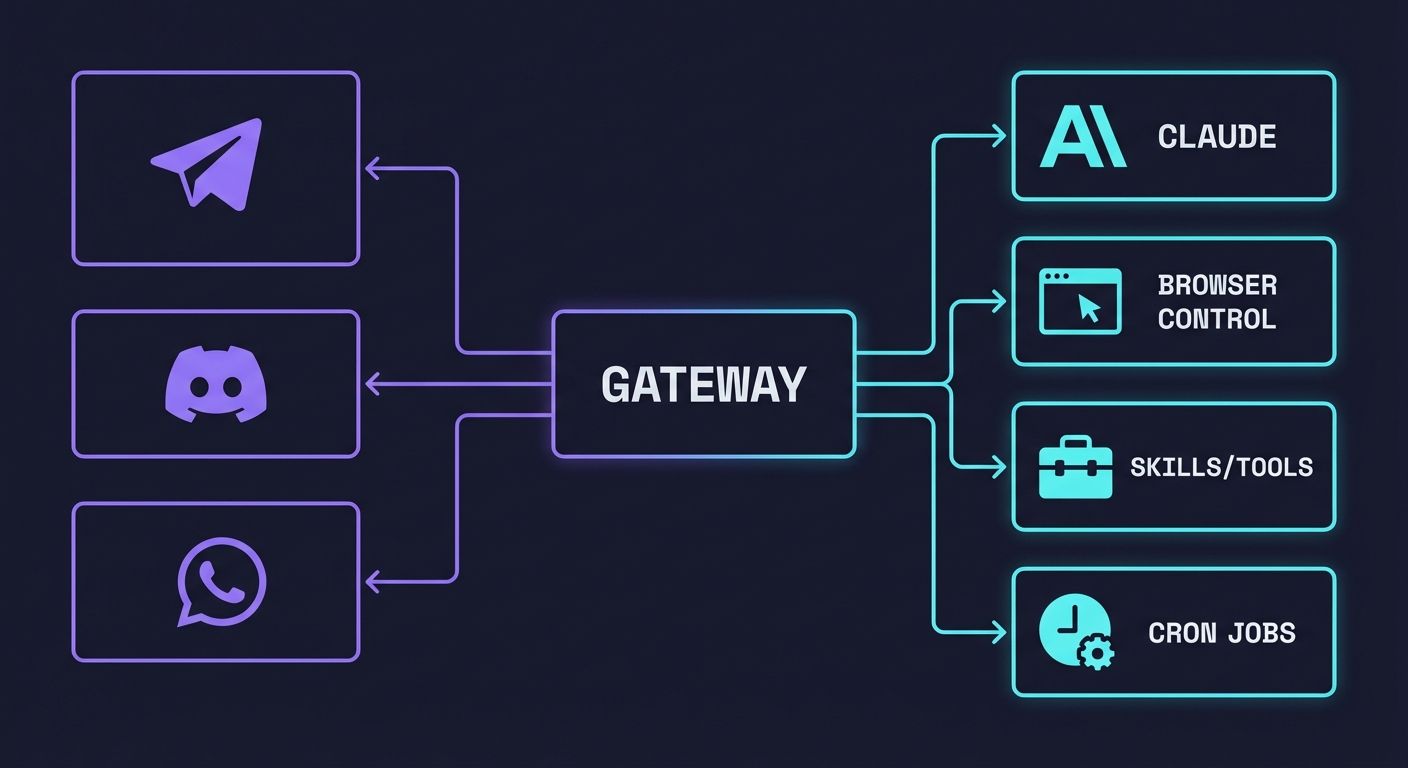
At its core, there's a Gateway — a local WebSocket control plane that handles:
- Sessions: Isolated conversation contexts
- Channels: Connections to your messaging platforms
- Tools: Browser automation, file operations, shell commands
- Skills: Pluggable capabilities like web search, calendar, weather
- Cron: Scheduled tasks and heartbeats
The Gateway talks to AI providers (I use Anthropic's Claude Opus 4.5) and routes messages between your channels and the AI.
Why Clawdbot?
Before diving into the setup, let me share why I chose Clawdbot over other options:
- Local-first: Everything runs on my infrastructure. My data stays mine.
- Multi-channel: I can message the same assistant from Telegram, Discord, or wherever I am.
- Extensible: The skills system means I can add capabilities without touching core code.
- Always-on: It runs as a daemon, always ready to respond.
- Tool-enabled: It can browse the web, run code, generate images, search the internet — not just chat.
My Setup Overview
Here's what my setup looks like:
| Component | Choice |
|---|---|
| Deployment | Docker container |
| Primary Model | Anthropic Claude Opus 4.5 |
| Fallback Model | Minimax M2.1 (via OpenRouter) |
| Messaging Channels | Telegram, Discord |
| Browser | Headless Chromium |
| Skills | Brave Search, GitHub, Whisper, Google Places, Nano Banana Pro (image gen) |
Let me break down each piece.
Installation & Initial Setup
Docker Deployment
I run Clawdbot in a Docker container for isolation and easy updates. The basic setup is straightforward:
npm install -g clawdbot@latest
clawdbot onboard --install-daemon
The onboard command is a wizard that walks you through the initial configuration. It asks about:
- Your AI provider credentials (Anthropic API key or OAuth)
- Which channels you want to enable
- Your workspace directory
The Workspace
Clawdbot operates from a workspace directory — mine is /root/clawd. This is where it stores:
- AGENTS.md: Project-level instructions for the AI
- IDENTITY.md: The assistant's persona (I named mine "Sage" 🦉)
- USER.md: Information about me (timezone, preferences)
- MEMORY.md: Persistent memory index
- memory/: Daily logs and notes
- skills/: Custom workspace skills
The workspace files are injected into every conversation, giving the assistant persistent context about who it's talking to and how to behave.
Configuring the AI Models
Here's the model configuration from my ~/.clawdbot/clawdbot.json:
{
  "agents": {
    "defaults": {
      "model": {
        "primary": "anthropic/claude-opus-4-5",
        "fallbacks": ["openrouter/minimax/minimax-m2.1"]
      },
      "models": {
        "openrouter/minimax/minimax-m2.1": { "alias": "minimax" },
        "anthropic/claude-opus-4-5": { "alias": "opus" },
        "anthropic/claude-sonnet-4-5": { "alias": "sonnet" }
      },
      "contextPruning": { "mode": "adaptive" }
    }
  }
}
Why Opus 4.5? It's the most capable model for complex reasoning and tool use. The fallback to Minimax via OpenRouter ensures I have a backup if Anthropic has issues.
The aliases (opus, sonnet, minimax) let me quickly switch models mid-conversation with commands like /model sonnet.
Setting Up Messaging Channels
This is where Clawdbot really shines. I have two channels configured: Telegram and Discord.
Telegram Setup
{
  "channels": {
    "telegram": {
      "enabled": true,
      "dmPolicy": "pairing",
      "groupPolicy": "disabled",
      "streamMode": "partial"
    }
  }
}
Key decisions:
- dmPolicy: "pairing": Unknown senders get a pairing code. They can't just message me — I have to approve them first.
- groupPolicy: "disabled": I don't want the bot responding in group chats (yet).
- streamMode: "partial": Responses stream in chunks for a more responsive feel.
Setting up Telegram requires creating a bot via BotFather and providing the token. Clawdbot's wizard handles this.
Discord Setup
{
  "channels": {
    "discord": {
      "enabled": true,
      "groupPolicy": "allowlist",
      "dm": { "policy": "pairing" }
    }
  }
}
Similar philosophy — DMs require pairing approval, and groups only work if explicitly allowlisted.
Skills: Extending the Assistant
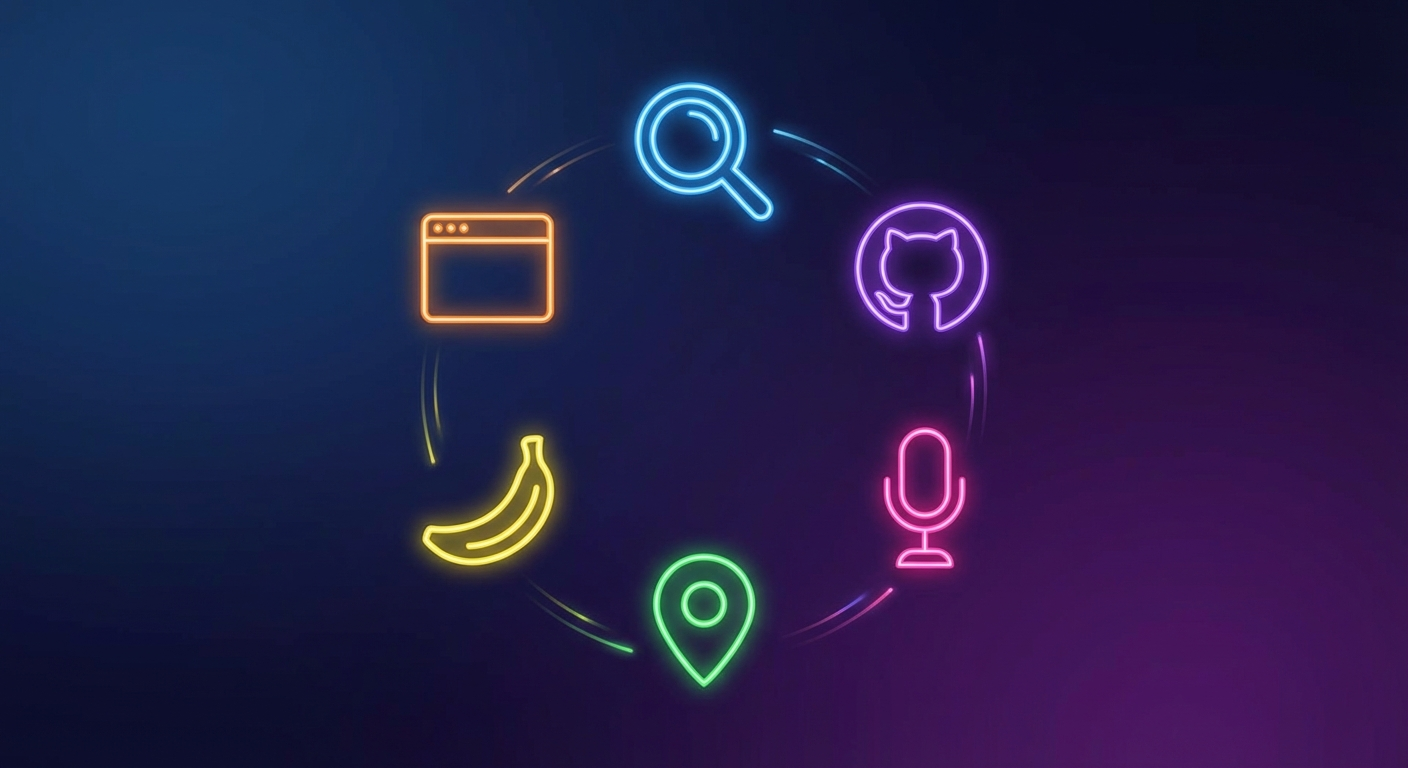
Skills are pluggable capabilities. Some are bundled with Clawdbot, others I've added from the ClawdHub marketplace.
My Active Skills
🔍 Brave Search
Web search without leaving the chat. Powered by Brave's Search API.
# Example: "Search for the latest Claude model updates"
🐙 GitHub
Full GitHub integration via the gh CLI. Create issues, check PR status, view CI runs.
🎤 OpenAI Whisper API
Audio transcription. I can send voice notes and get them transcribed automatically.
📍 Google Places
Location search. "Find Italian restaurants near me" actually works.
🍌 Nano Banana Pro (Gemini Image Gen)
This one's fun — it generates images using Google's Gemini 3 Pro. I used it to generate the images in this very blog post!
🌐 Browser Control
Clawdbot can control a headless Chromium browser. It can navigate pages, take snapshots, fill forms, and extract data. This is surprisingly powerful for automation tasks.
The Browser Setup
For browser automation, I'm running headless Chromium:
{
  "browser": {
    "enabled": true,
    "executablePath": "/ms-playwright/chromium-1200/chrome-linux64/chrome",
    "headless": true,
    "noSandbox": true
  }
}
This lets Clawdbot:
- Navigate to URLs and take snapshots
- Extract text and interact with page elements
- Fill out forms and click buttons
- Generate PDFs from web pages
The noSandbox: true is necessary for running in Docker.
Workspace Identity & Memory
One of my favorite features is the identity system. In IDENTITY.md:
# IDENTITY.md - Agent Identity

- Name: Sage
- Creature: Owl
- Vibe: Wise
- Emoji: 🦉
This gives the assistant a personality. Sage responds as a wise owl — concise, helpful, occasionally adds a 🦉 emoji.
The memory system (MEMORY.md + memory/ folder) provides persistent context across sessions. The assistant can remember preferences, track todos, and maintain daily logs.
Learnings and Observations
Here's what I learned setting this up:
1. Let Claude Debug the Errors
This was a game-changer. Instead of manually debugging configuration issues, I'd paste the error into my conversation with Sage and ask for help. The assistant debugging itself feels meta, but it works remarkably well.
Example: When my Telegram channel wasn't connecting, I just asked:
"Here's the error I'm seeing: [error]. What's wrong?"
Sage analyzed the config, identified the issue (missing bot token format), and walked me through the fix. The iteration loop of "try → error → ask Claude → fix → try again" is incredibly fast.
2. Start Simple, Add Complexity Later
I started with just Telegram and basic chat. Once that worked, I added Discord, then skills, then browser automation. Each piece builds on the last.
3. The Pairing System is Essential
The dmPolicy: "pairing" setting means random people can't just message your bot. They get a code, you approve it. This is a security must-have when exposing an AI to real messaging surfaces.
4. Workspace Files Are Powerful
The AGENTS.md, USER.md, and IDENTITY.md files are injected into every conversation. This means the assistant always knows:
- Who you are
- Your preferences
- How to behave
Customize these files and you customize the entire experience.
5. Skills Make It Practical
Out of the box, Clawdbot is a chatbot. With skills, it becomes an assistant that can actually do things — search the web, check your calendar, generate images, control your smart home.
What's Next?
I'm planning to expand my setup with:
- Voice Wake: Always-on speech recognition on macOS
- Canvas: A visual workspace the assistant can render to
- More Skills: Calendar integration, home automation, custom workflows
- Cron Jobs: Scheduled heartbeats and reminders
Conclusion and Final Thoughts
Building a personal AI assistant used to require stitching together a dozen different services. Clawdbot simplifies this into a single, self-hosted package that meets you where you are — your messaging apps.
My setup with Telegram + Discord + Claude Opus gives me:
- An always-available assistant
- Multi-channel access
- Extensible skills
- Browser automation
- Persistent memory
And perhaps most importantly: it's mine. My data, my infrastructure, my rules.
If you're interested in setting up your own Clawdbot instance, check out the official docs. And if you have questions or want to share your own setup, feel free to reach out!
Until next time, ciao! 🦉
Have thoughts on personal AI assistants or your own Clawdbot setup? I'd love to hear from you — reach out on LinkedIn or GitHub.